

Nishio for Chrome
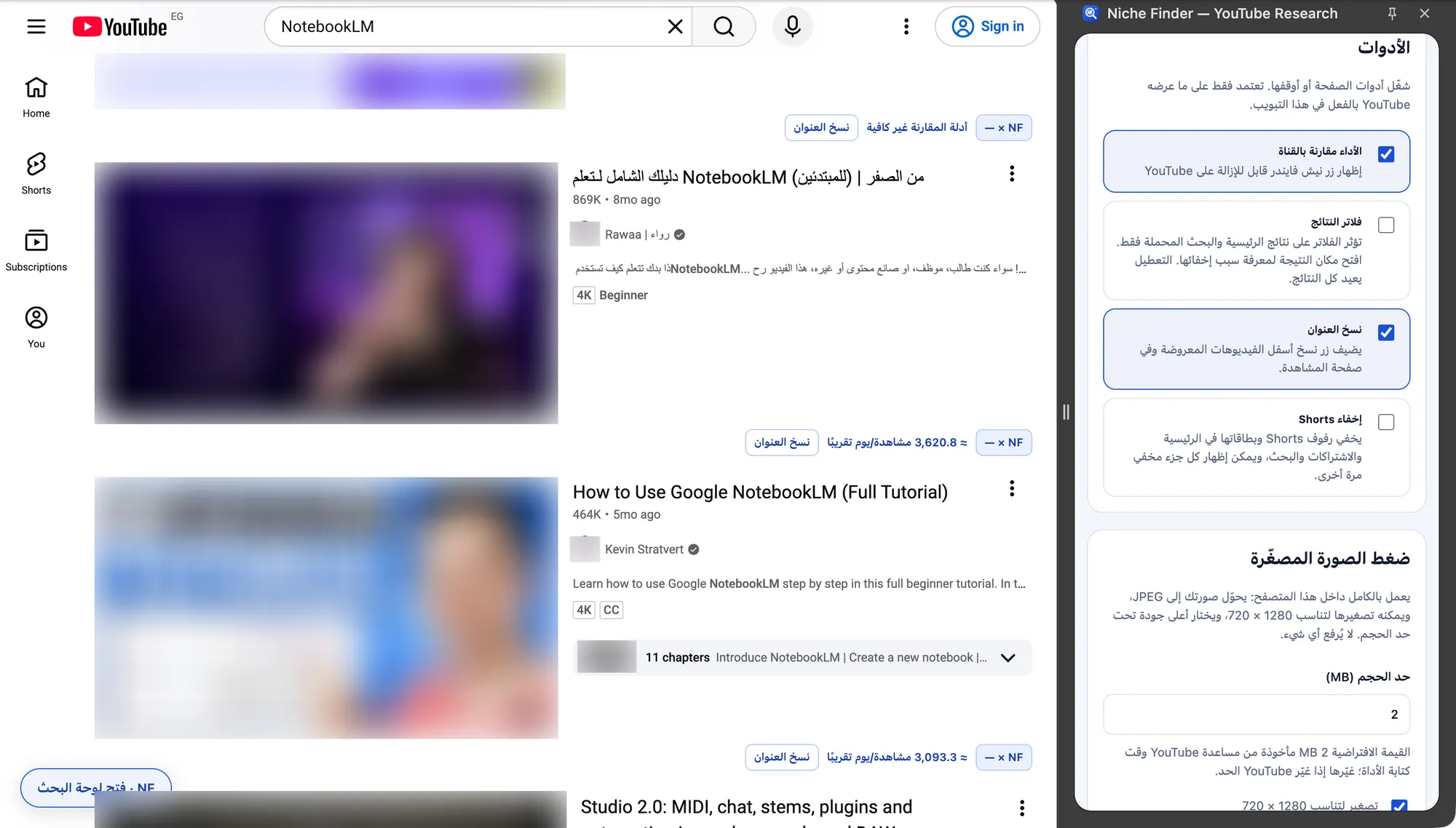
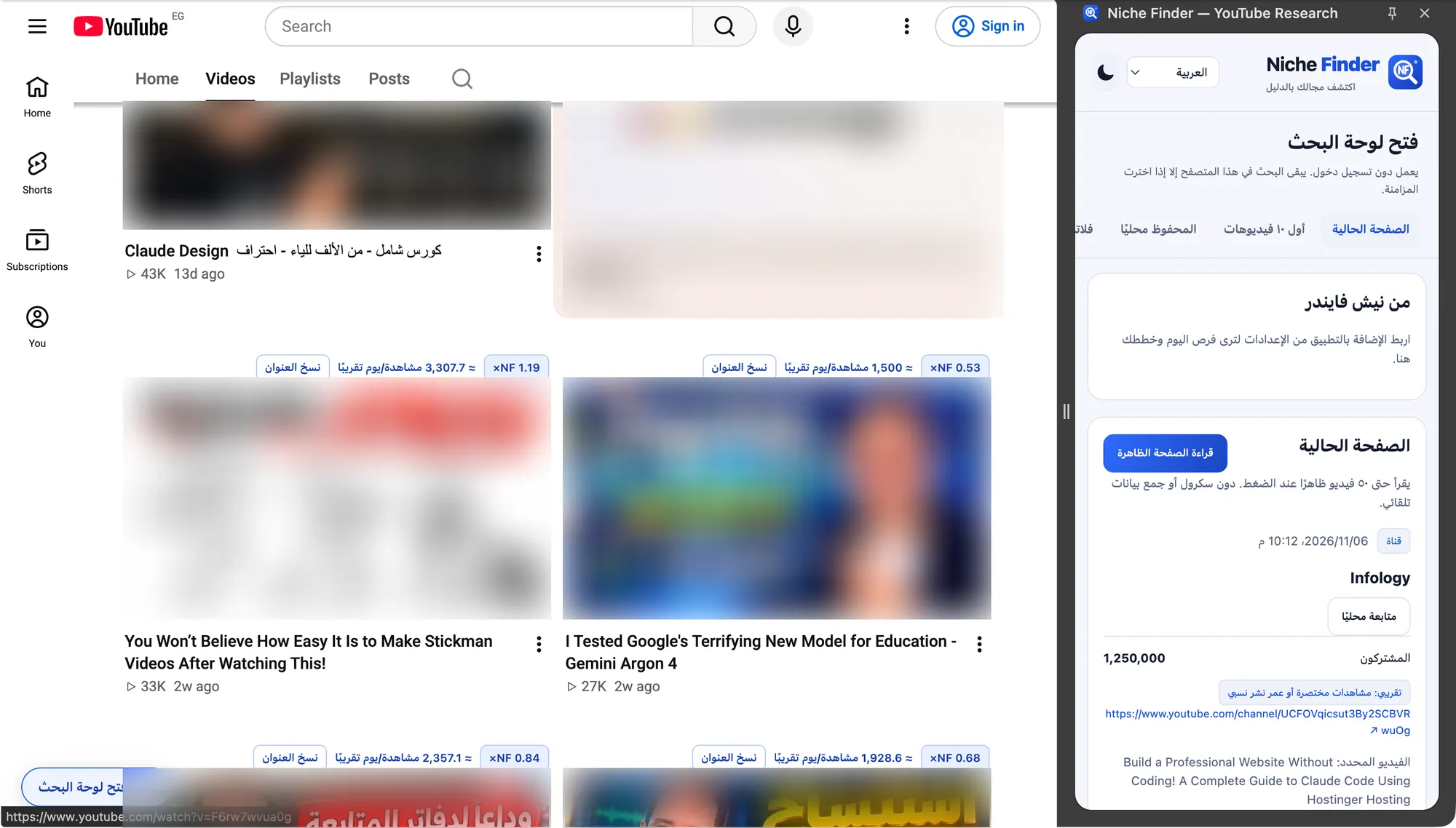
Research tools inside YouTube: outlier badges, a side panel, page tools and ten-video ideas.
Manual install — not on the Chrome Web Store yet · v0.1.0 · Chrome 120+
What it does
- Outlier badges on the videos you’re looking at
- Read and save the visible page to your local library
- Hide Shorts and filter results by words, views, age or length
- Preview a title with your thumbnail and compress the image
- Today’s opportunities from the app, inside YouTube
Install in 5 steps
Download and unzip
Unzip niche-finder-extension.zip and keep the folder somewhere permanent, like Documents. Deleting or moving it removes the extension.
Open the extensions page
Type chrome://extensions in the address bar and press Enter. In Brave use brave://extensions, in Edge edge://extensions.
chrome://extensions
Turn on Developer mode
Use the Developer mode switch at the top of the page.
Load unpacked
Click “Load unpacked” and choose the unzipped niche-finder-extension folder: the one holding manifest.json next to worker.js and content.js. A folder that has manifest.json but no worker.js is the wrong one.
Pin it and open YouTube
Pin Nishio from the puzzle-piece menu, then open or reload a YouTube tab.
Update to a new version
Download the new ZIP, replace the files in the same folder, then click the reload icon on the Nishio card in chrome://extensions. Your saved data is kept. Unpacked extensions don’t update automatically — check the changelog. Changelog
Pair with the desktop app (optional)
In the app open Settings → Browser extension pairing, paste the extension ID, allow access and create a one-time code. Enter it in the extension. The extension talks only to the app on 127.0.0.1. Docs
Permissions explained
storage | Keeps your saved pages, library and settings in the browser. |
sidePanel | Shows the Nishio panel next to YouTube. |
activeTab / scripting | Reads only the YouTube page you’re on when you use a tool. |
alarms | Refreshes today’s opportunities from the paired app every few minutes. |
youtube.com | Adds badges and tools on YouTube pages. |
127.0.0.1 | Talks to the Nishio desktop app on your own computer — nowhere else. |
Troubleshooting
“Could not load background script” or “Could not load manifest”
The folder you chose has a manifest.json but not the files it points at. Pick the unzipped niche-finder-extension folder, which also contains worker.js. If you build from the repository, that folder is apps/extension/dist, never apps/extension. Remove the failed entry from the list before loading again, otherwise the old error stays on screen.
“Manifest file is missing”
You selected the wrong folder level. Choose the folder holding manifest.json and worker.js together.
Nothing appears on YouTube
Reload the YouTube tab after installing or updating the extension.
Developer mode is disabled by your organization
Your browser is managed; ask your administrator, or use a personal browser profile.
Remove
Open chrome://extensions and click Remove on the Nishio card. Then you can delete the folder.