

DocsResearch
Channels
Compare the channels in your saved research side by side, with quick filters, sortable columns and an explicit way to fetch each channel’s latest uploads.
Real screenshot of the app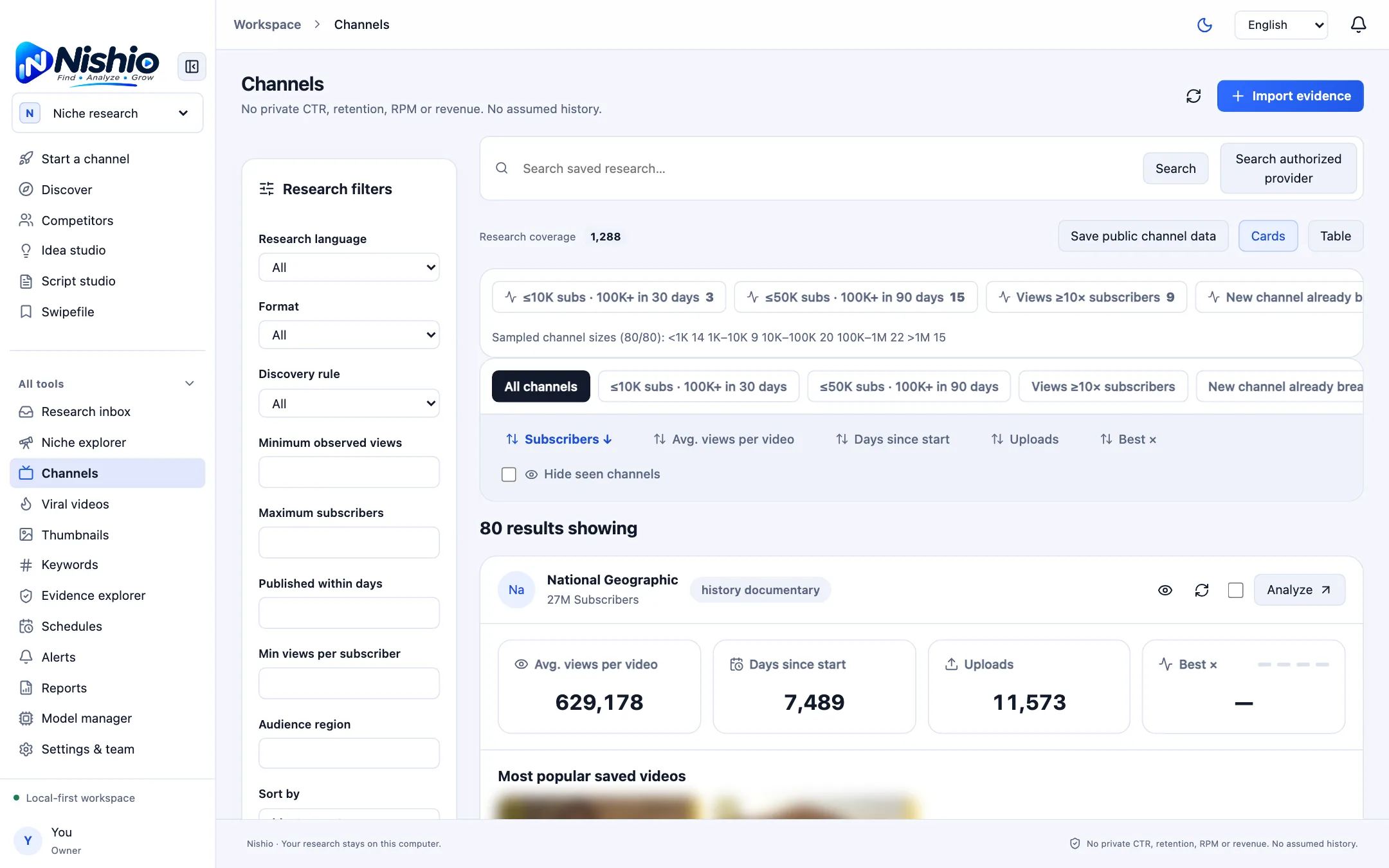
Quick filters
- All channels: no preset rule.
- Has outliers: at least one saved video at ≥3× its channel’s same-format median (needs ≥8 comparable videos).
- New channel, high avg views: created ≤180 days ago with a lifetime average of ≥10,000 views per video.
- Views above subscribers: lifetime average views per video ≥ subscriber count.
- Above 50K avg views: lifetime average ≥50,000 views per video.
Read and sort the board
Sort by Subscribers, Avg. views per video, Days since start, Uploads or Best ×. Missing values always sort last, so an unknown never looks like a zero. “Hide seen channels” and “Mark as seen” help you work through a long list; the research filters on the left still apply.
- Avg. views per video = the channel’s total public views ÷ public uploads over its lifetime, from the YouTube Data API. It is a lifetime average, not last month’s growth.
- Best × is the highest saved video ratio against the channel’s same-format median; it shows — when the sample is too small.
Go deeper on a channel
- Open a channel to see its “Most popular saved videos”.
- Click “Fetch latest videos” to fetch its latest 50 public uploads through the official API (3 read units, no search). They are saved as dated evidence and make outlier comparisons possible.
- Select up to four channels and use “Compare selected”, or add them to a watchlist in Competitors.
Blank means unknownIf a value was never observed, the cell stays “Unavailable” rather than being filled with a guess.