

Start a channel
Turn a channel idea into a plan in three steps: describe the idea, study real channels in a saved sample, then draft your first ten video briefs.
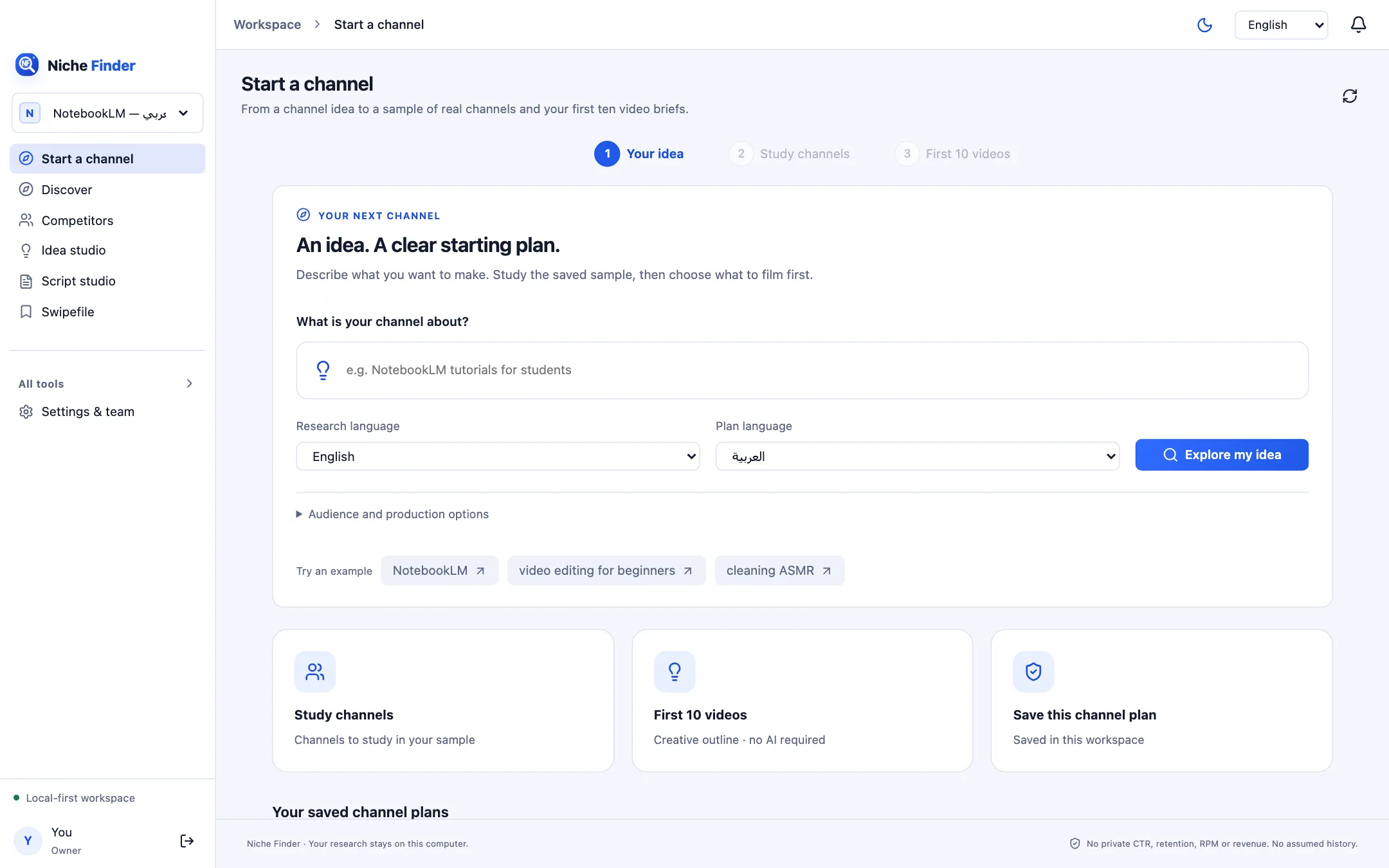
1. Your idea
- In “What is your channel about?” type your topic, for example “NotebookLM tutorials for students”. Or click one of the “Try an example” chips.
- Choose a Research language (whose videos you want to study) and a Plan language (the language of your briefs).
- Open “Audience and production options” to describe who it is for, the format (Shorts or Long-form), the production mode (Animation, or Real footage with motion graphics) and the time window (Published within 30 or 90 days).
- Click “Explore my idea”.
2. Study channels
“Channels to study in your sample” lists channels whose saved videos match your topic. They are sorted by views across up to 40 matching saved videos. Each card shows the number of matching videos, views in the sample and when they were observed. This is a research sample, not a market-wide ranking or proof of recent growth.
If nothing matches yet, the screen says “No matching recent sample yet” and offers ways to build one:
- “Open YouTube search” or “Find channels on YouTube” to browse normally and save a permitted sample with the Chrome extension.
- “Import a sample” to bring in a licensed CSV or JSON export.
- “Search with YouTube API”: tick “Run one official search and save its results in this workspace” to run one official search (needs your API key).
- “Load this channel’s uploads” on a channel card: one explicit official fetch that builds the same-channel baseline used for outlier comparisons.
3. First 10 videos
Click “Build my first 10 briefs”. Each card proposes a title and “What to make”: a beginner guide, a comparison, a hands-on test, an answer to a common question. When a saved video relates to a brief, it is attached as “Saved example for context”.
- Choose the briefs that fit your experience and tools; you do not have to film all ten.
- Click “Save this channel plan”. Saved plans appear under “Your saved channel plans” and can be reopened later.
- Use “Export plan” to take it elsewhere.
- Pick a brief and click “Create a script draft” to open an evidence-linked draft in Script studio.