

DocsAI & settings
Local AI with Ollama (optional)
Nishio works without any AI. If you want help drafting, it can use models that run on your own computer through Ollama — nothing is downloaded without your confirmation.
Real screenshot of the app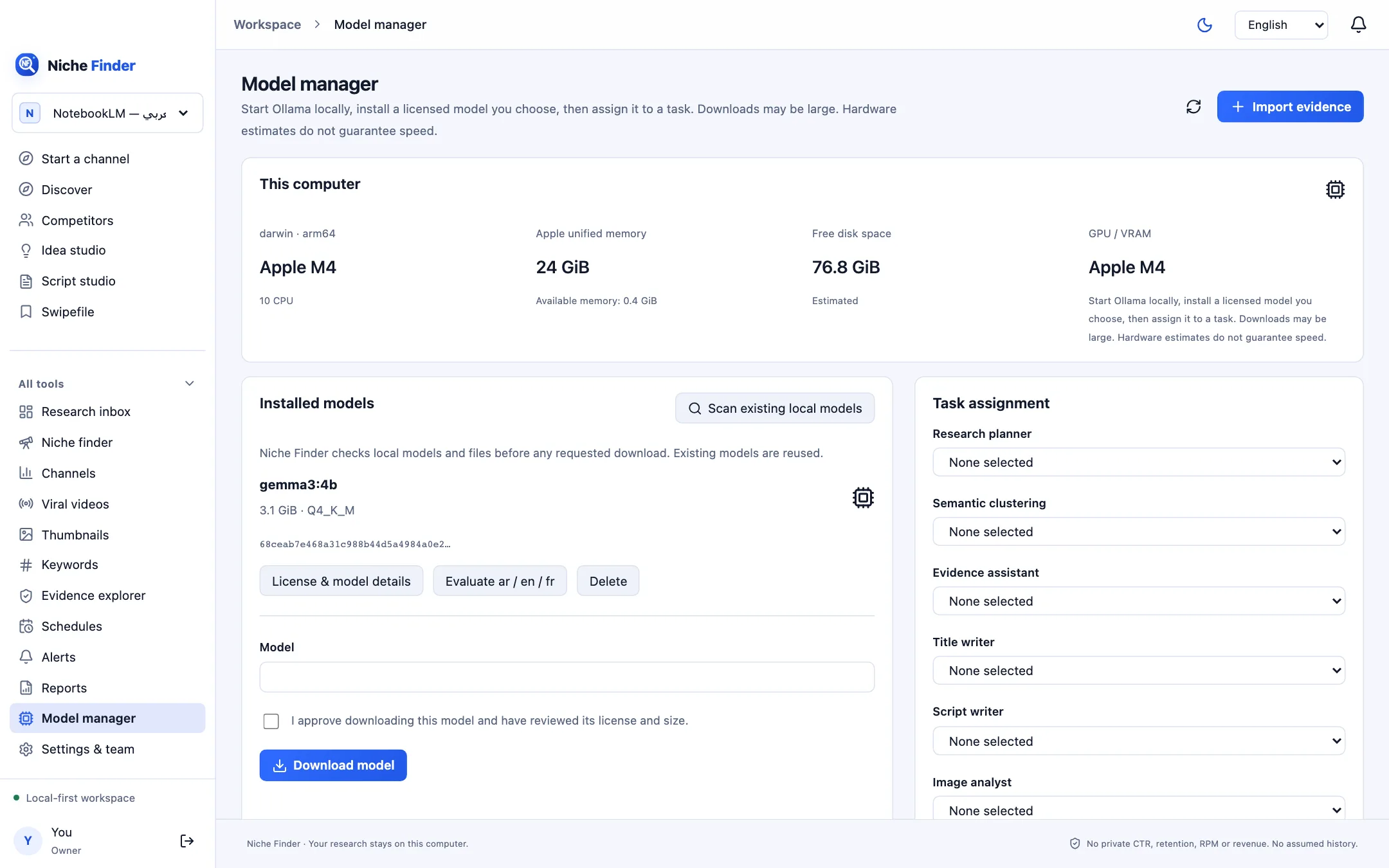
Set up Ollama
- Install Ollama separately from ollama.com and start it. Nishio looks for it on 127.0.0.1:11434.
- Open All tools → Model manager. If Ollama is not running you will see: “Ollama is offline. Saved research and deterministic analytics still work.”
- Click “Scan existing local models”. Models you already have are listed under Installed models and reused.
This computer
The top panel shows your processor, system or Apple unified memory, available memory, free disk space and GPU / VRAM, so you can judge which model sizes are realistic. Hardware estimates do not guarantee speed.
Download and assign models
- To add a model, type its name in Model, review its license and size, tick “I approve downloading this model and have reviewed its license and size.” and click “Download model”. Downloads may be large.
- Use “License & model details” to check a model, and “Evaluate ar / en / fr” to try it in each language.
- Under Task assignment, pick a model for each task you want help with: Research planner, Semantic clustering, Evidence assistant, Title writer, Script writer, Image analyst, Fact checker, Report composer, Multilingual embeddings and Niche analyst. Tasks left on “None selected” simply do not use AI.
Cloud models are disabledOnly local installed models are used. Your research is not sent to an online AI service.
Review what a model writesModel output is a draft. Check its wording and sources, especially any fact or number. Output that fails validation is not saved.