

DocsAutomate
Schedules
Run research jobs on a timetable: monitor saved research, build digests and reports, and see every run in the job history.
Real screenshot of the app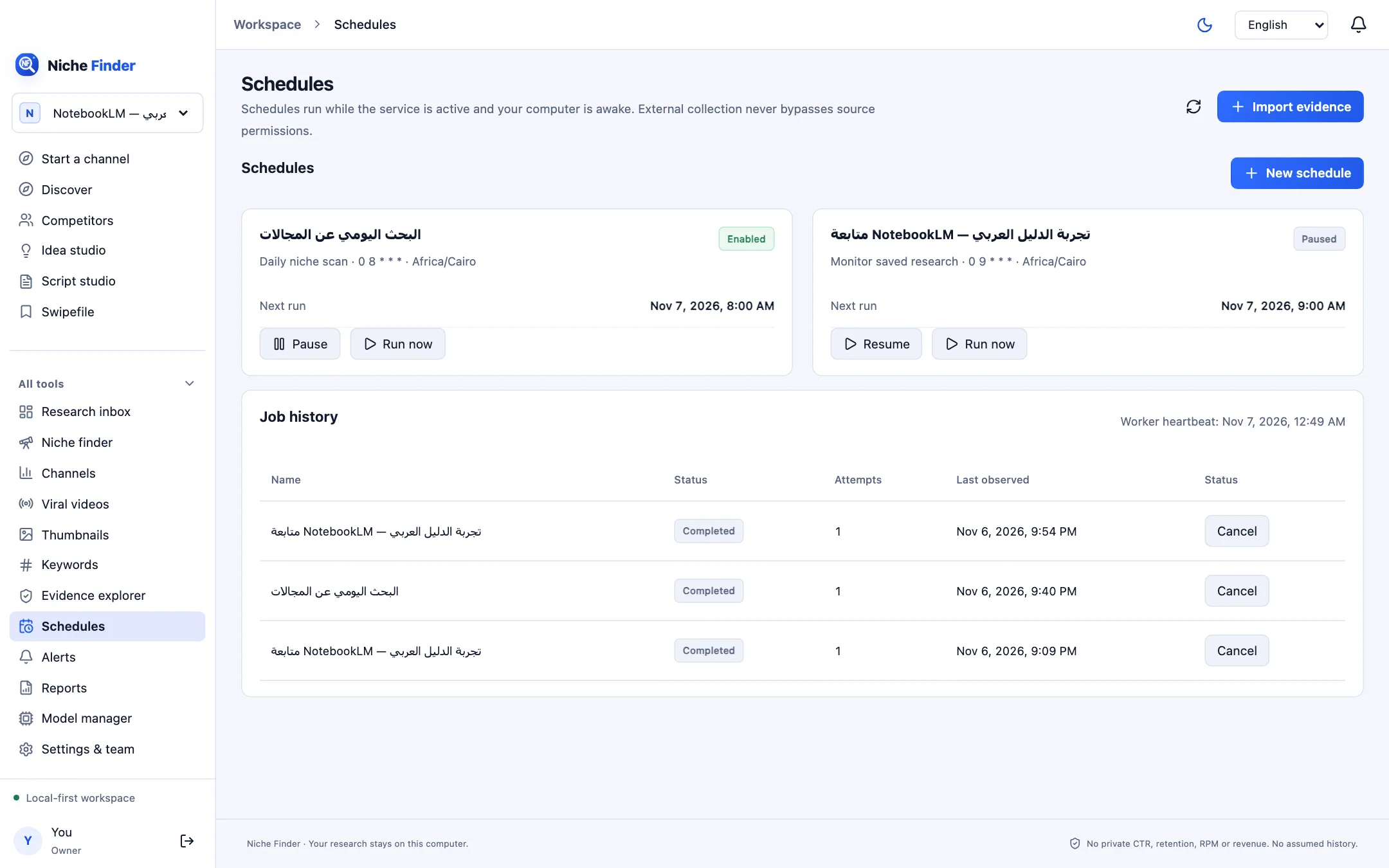
Create a schedule
- Click “New schedule” and give it a name.
- Choose a Job type: Monitor saved research, Research digest, Local report, or External collection (requires authorization).
- Set the Cron expression (the default 0 */6 * * * means every six hours), the Time zone and the Output language.
- Choose what happens “After sleep / missed run”: Catch up once, or Skip missed runs.
- Save. The card shows Enabled and the Next run.
Run and review
- “Run now” starts a job immediately; Pause and Resume stop and restart the timetable.
- Job history lists each run with its status (Queued, Running, Completed, Failed, Blocked, Cancelled or Interrupted), Attempts and Last observed time. A queued or running job can be cancelled.
- “Worker heartbeat” shows when the background worker last checked in.
Your computer has to be awakeSchedules run while Nishio is running and your computer is awake. A schedule never invents new views, and external collection never bypasses source permissions or quota limits.
Clean up test schedulesPause schedules you only created to try things out, so they do not keep running in the background.